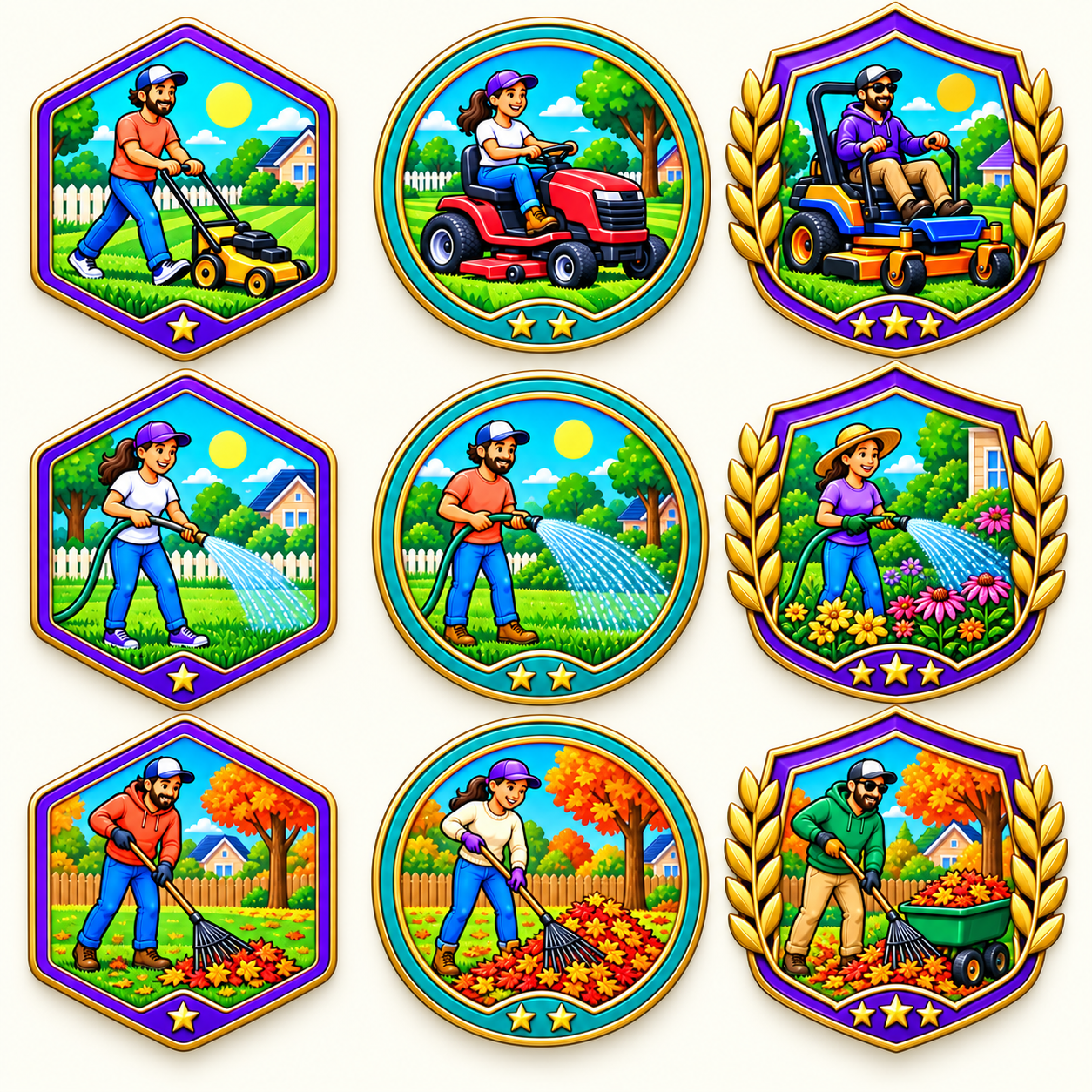
YARDWORK · RANK 1
First Cut
Complete one Mow lawn chore from the Chores library. No minimum working time is required for this first rank.
 Pipward.
START SMALL. FIND YOUR RHYTHM.
Your first chore, your first reminder, your first small win. Here’s how to make Pipward part of your day.
Follow along with real app screenshots. Tap any picture for a closer look.
Guide for Pipward 1.0 · Available now in the U.S. App Store. Time ordering and color themes are covered below. See the build history.
WATCH THE QUICK START · 1 MIN 25 SEC
Follow a real Water plants chore through the library, a simple checklist and your first badges—with narration and English captions.
Use full screen for a closer look. Filmed in Pipward 0.6.6 with example chores.
GETTING STARTED. Welcome to Pipward. Let's turn one small chore into a little more space in your day.
01 · CHOOSE A CHORE. Open Chores and find Water plants. The library gives you a ready-made starting point, with a category and suggested working time.
02 · CHOOSE WHEN. In the editor, choose a day, or use Someday if there's no date yet. This chore already repeats weekly. You can change that to suit your routine.
03 · ADD A CHECKLIST. Add a checklist to make the next step clear. Check the soil. Water slowly. Empty the saucer. Tap Add after each item, then save your chore.
04 · FINISH YOUR CHORE. Open your chore in Today and check off the steps as you go. When you're finished, tap Finish chore. Enter your working minutes, then tap Mark complete.
05 · CELEBRATE YOUR PROGRESS. Your first completed chore earns First Mark. Completing Water plants from the library also earns Plant Pal. Open Badges to see your progress and your next goal.
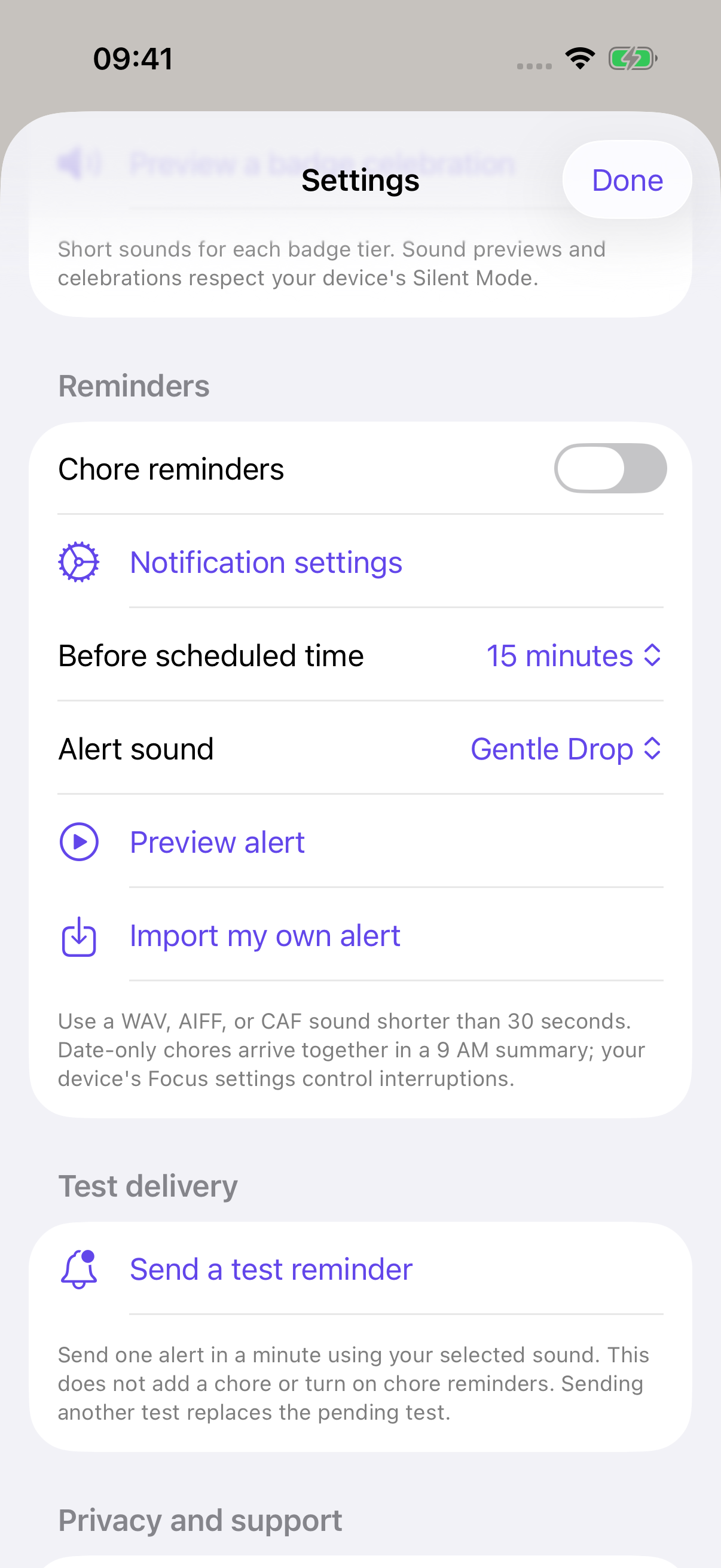
06 · SET UP REMINDERS. For a little help remembering, open Settings and scroll to Reminders. Turn on Chore reminders and allow notifications when asked. You can send a test reminder to check delivery.
YOU'RE READY. That's your first little win. The guide below covers Apple Watch, calendars, and more. Start small, find your rhythm, and make room for your day with Pipward.
SEE WHAT’S NEW · 36 SECONDS
A short tour of time ordering, ten color themes and Light and Dark appearance, using real app screenshots.
A narrated still-screen walkthrough with English captions. No music. Example chores; use full screen for a closer look.
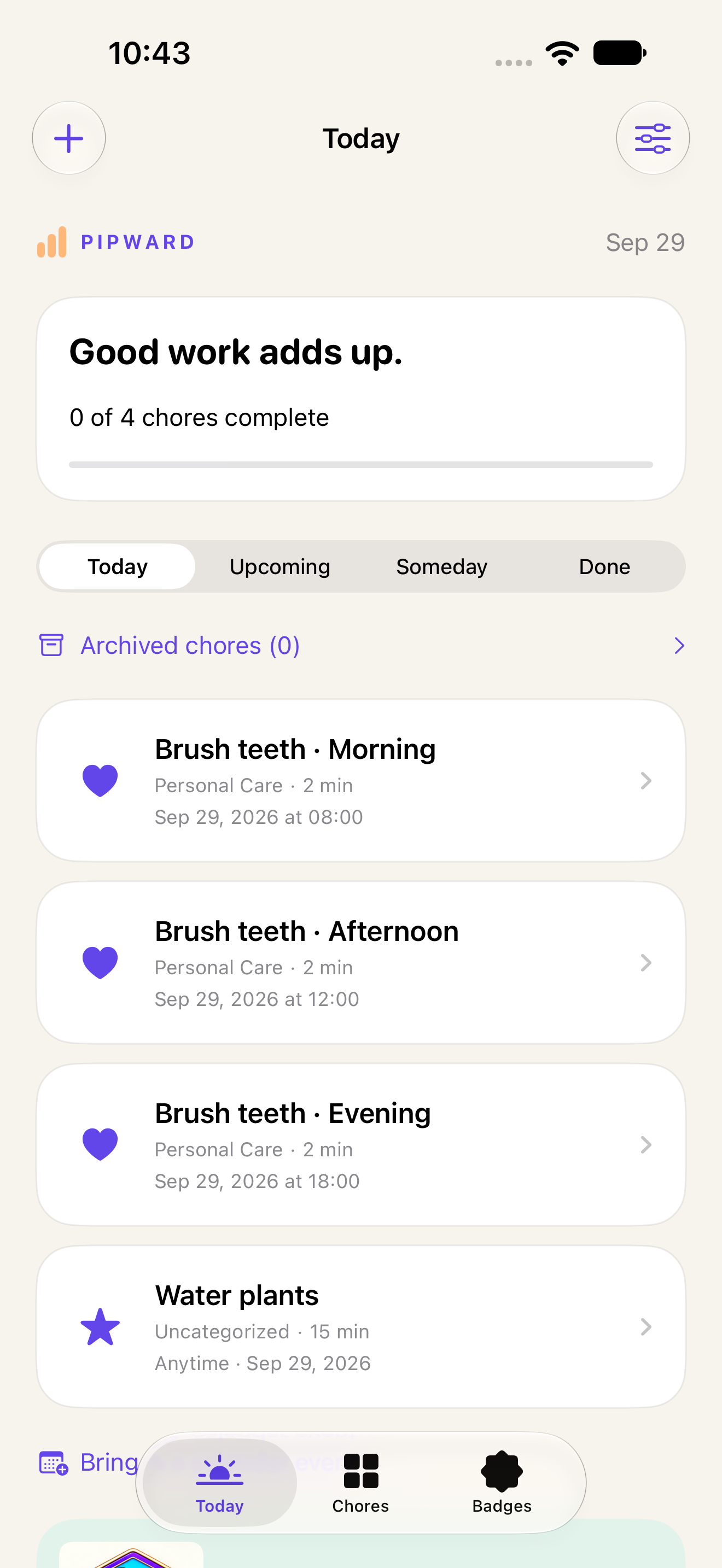
01 · YOUR DAY, IN ORDER. Earlier dates come first. Within each day, timed chores run from earliest to latest. Anytime chores follow that day’s timed chores.
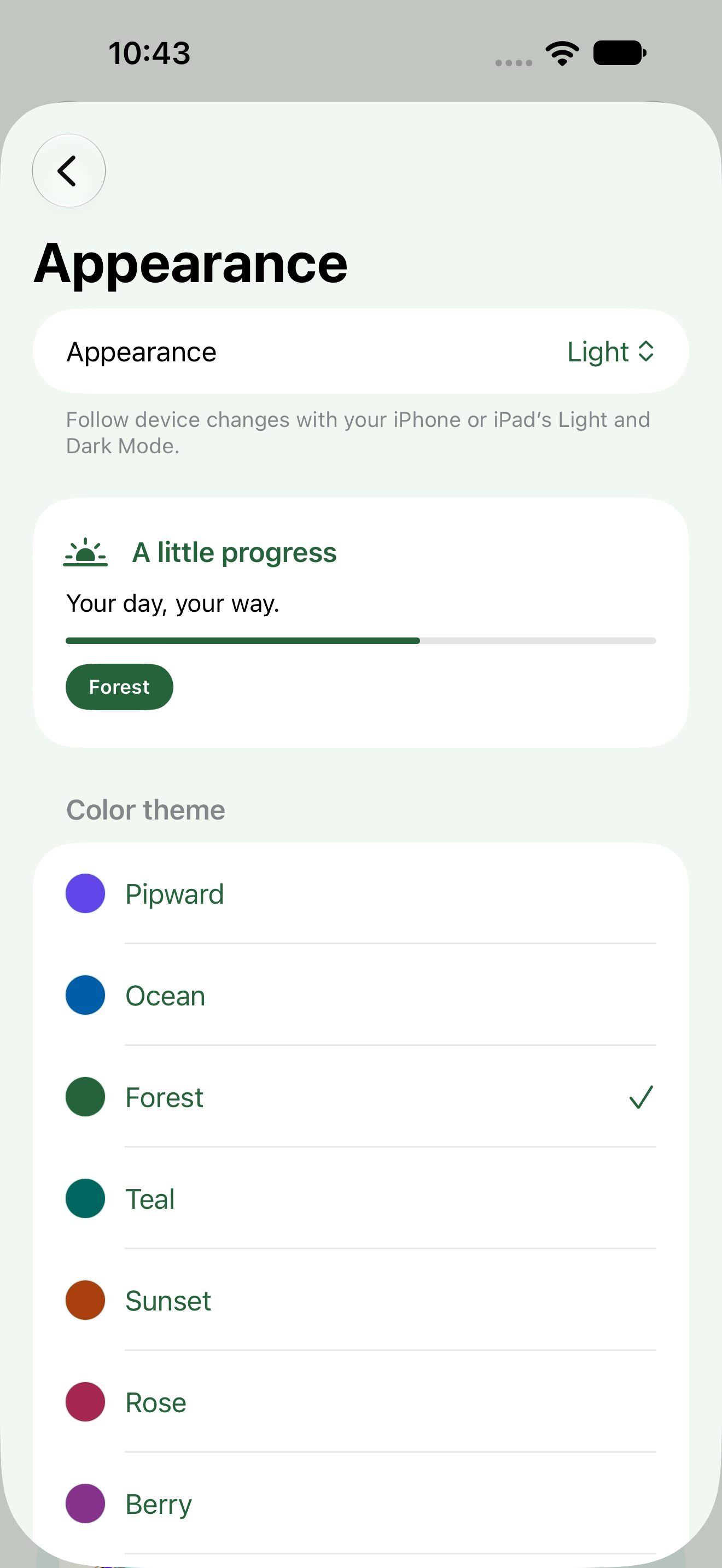
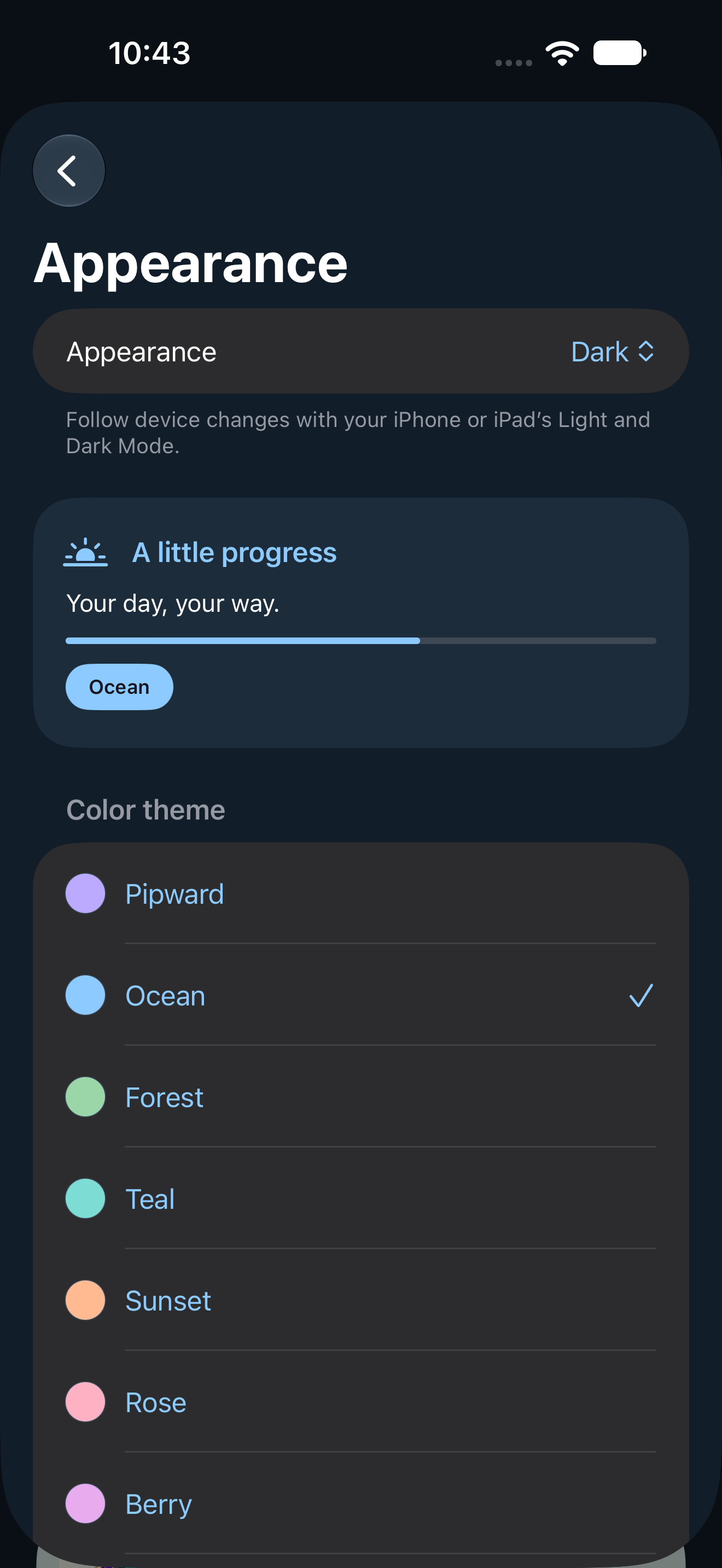
02 · TEN COLOR THEMES. Open Settings, then Appearance. Choose from ten color themes. Buttons, highlights, cards and backgrounds take on your palette. Badge artwork keeps its original colors.
03 · LIGHT AND DARK. On iPhone and iPad, choose Follow device, Light or Dark. Your palette is saved separately on each device. Apple Watch has its own choice in Appearance.
On iPhone or iPad, open Today and tap the + button to add a chore. Give it a name, add a note if you need one, and tap Save.
Or open the Chores tab and choose a familiar task from the library. Library chores already have a category and suggested working time.
Try this: choose Water plants from the Chores library. It’s an easy place to start—and completing it counts toward the Plant Pal badge below.
You can create your own chore with Create a custom chore. Custom chores contribute to general and category progress; the named chore badges use the matching standard library chore.
To organize a custom chore, scroll to Make it yours → Category. Choose a category, or tap Add a category to create your own. Saved category names can be reused on other custom chores. Standard library chores keep their built-in category.

In the chore editor, use Someday when there’s no date yet. Turn Someday off to choose a day, and turn on Set a time if the chore belongs at a particular time.
For a routine, choose a Repeat option before saving. When you complete a repeating chore, Pipward creates its next occurrence using the scheduled pattern. Its checklist starts unchecked again.
Chores are ordered by date, then by clock time. See how timed and Anytime chores are ordered.
The filters in Today help you move between today’s work, Upcoming, Someday, and Done. Upcoming also previews the next scheduled repeat before you finish the current chore. Open a preview and tap Open current chore to work on the active occurrence.

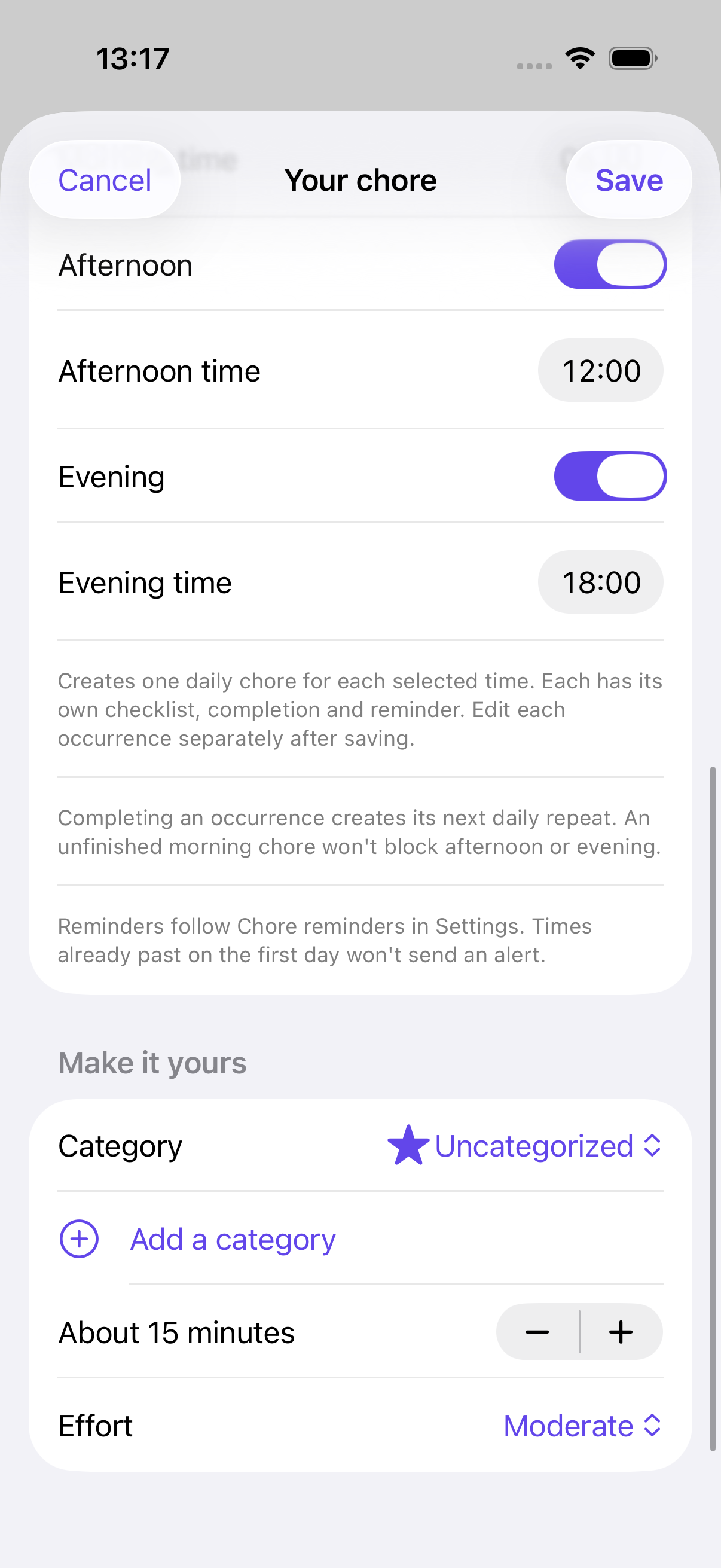
A chore can have separate Morning, Afternoon and Evening occurrences. Set these up on iPhone or iPad.
Each occurrence has its own checklist, completion, timer and reminder. Finishing Morning does not finish Afternoon or Evening; it creates the next Morning repeat. An unfinished occurrence stays available.
After saving, open an individual occurrence and tap Edit to change its time. The change applies to that occurrence and its future repeats.
Already using build 29? Noon now displays as Afternoon. Your saved clock times stay the same; the label change does not move your reminders.
Open Chores and find Personal Care, or search for a routine by name. The six starters are Brush teeth, Floss teeth, Wash face, Take a shower, Brush hair and Trim nails.
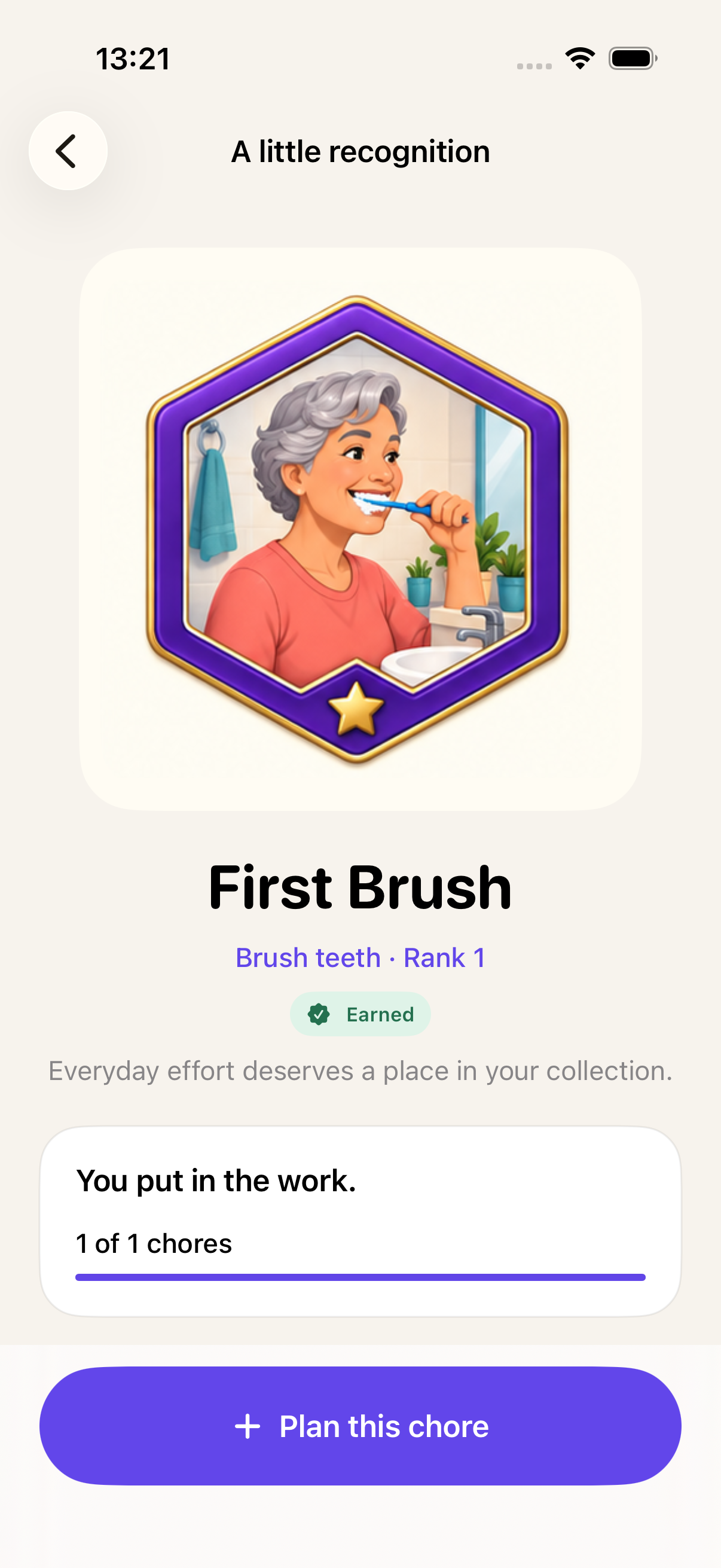
You can also choose Personal Care as the category for a custom chore. Custom routines count toward Personal Care category awards. To earn a named award such as First Brush, start with its matching library chore.
Another way in: open Badges, filter to Personal Care, and open a badge. Use Plan this chore for a specific routine, or Choose a chore from a category award.

Use the Checklist section in the chore editor. Type a step in Add an item, tap Add, and repeat for the other steps. Then save the chore.
Open the chore to check steps off as you go. You can also check items from your Apple Watch.
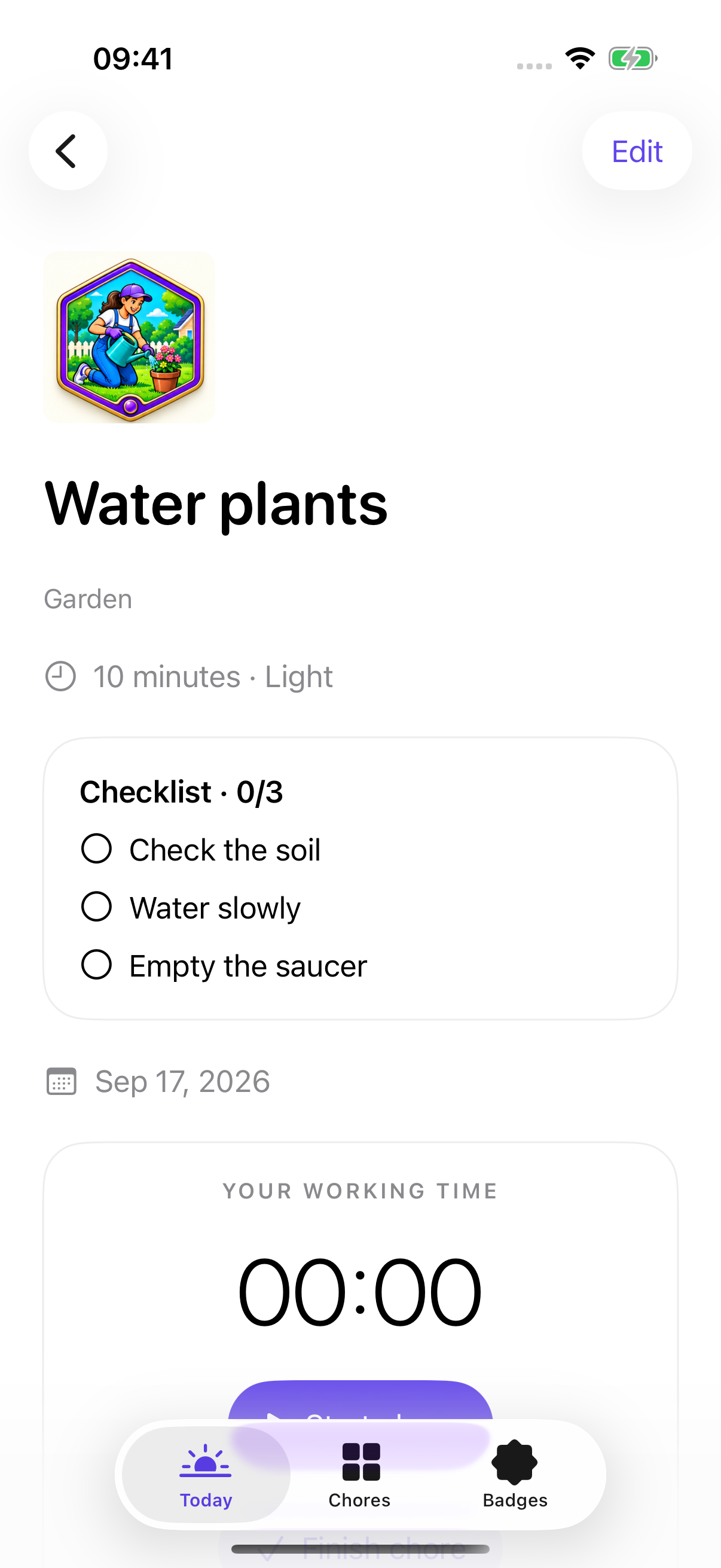
A simple example: give “Water plants” three steps: “Check the soil,” “Water slowly,” and “Empty the saucer.” The screenshot shows exactly how that checklist looks after saving.
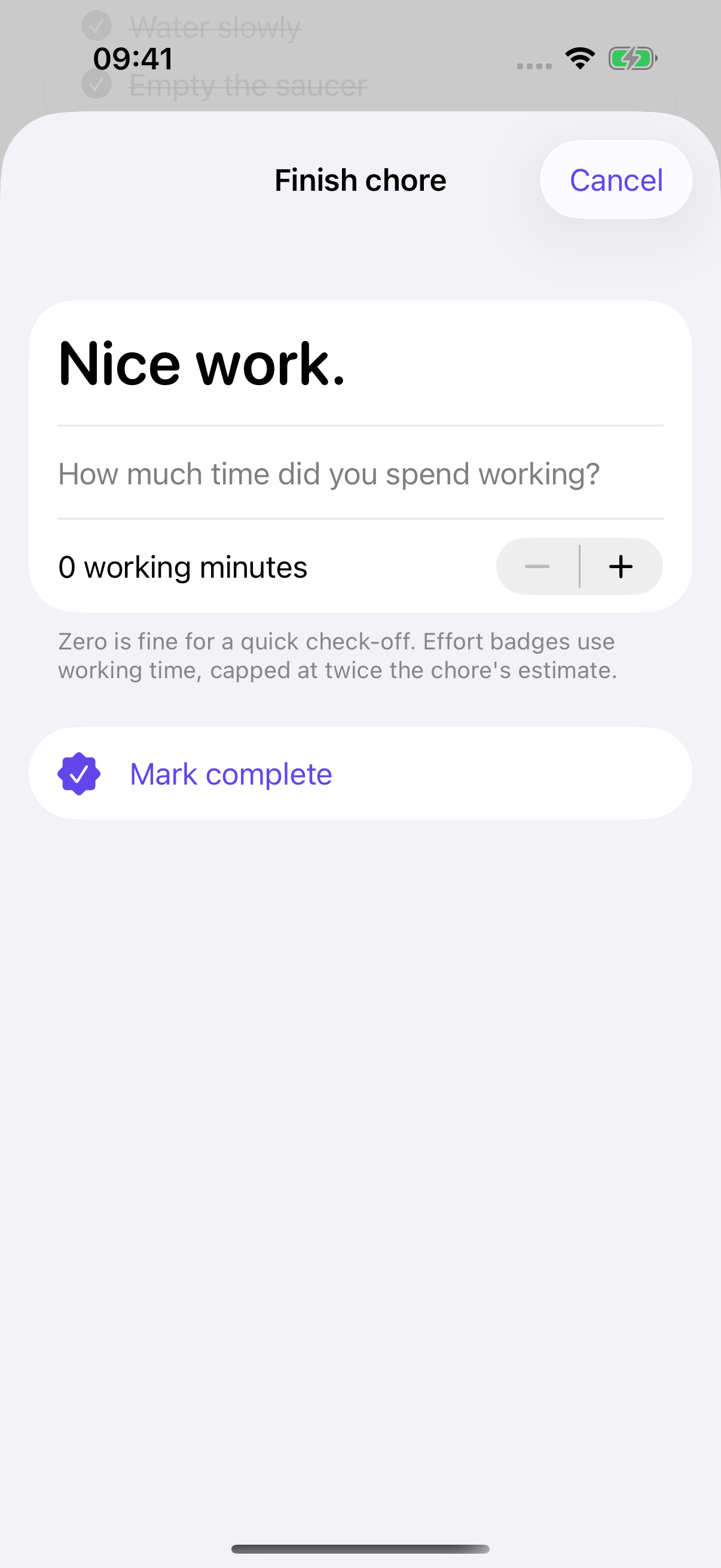
Open a chore when you’re ready to work. You can use its timer and pause for breaks, or enter your working minutes when finishing. Tap Finish chore, then use Mark complete in the completion screen to record the work.
Your finished chore appears in Done. If you finished it by mistake, open it and use Undo completion; badge progress is recalculated. Complete any chore to earn First Mark, then open Badges to explore what comes next.
Open a badge to see its exact goals. Some higher ranks require both completed chores and working minutes. Personal Care ranks use completions only, so a quick checkoff can earn progress without starting a timer. You can leave working minutes at zero when finishing one of these routines. A category milestone means completing each standard chore type in that category at least once.
Build 30 adds 22 Personal Care awards, bringing the collection to 173. These are real illustrations and earning rules from Pipward.
Complete one Brush teeth chore created from the library. It earns First Brush without a minimum working time.
Each Personal Care routine has ranks at 1, 5 and 20 completed occurrences. Category awards count completed Personal Care chores across your routines. The Personal Care Complete milestone requires all six different standard routine types at least once.
Open a badge to see its requirements and progress. You can filter the cabinet by Personal Care, or select Earned to find awards you already have.
YARDWORK · RANK 1
Complete one Mow lawn chore from the Chores library. No minimum working time is required for this first rank.
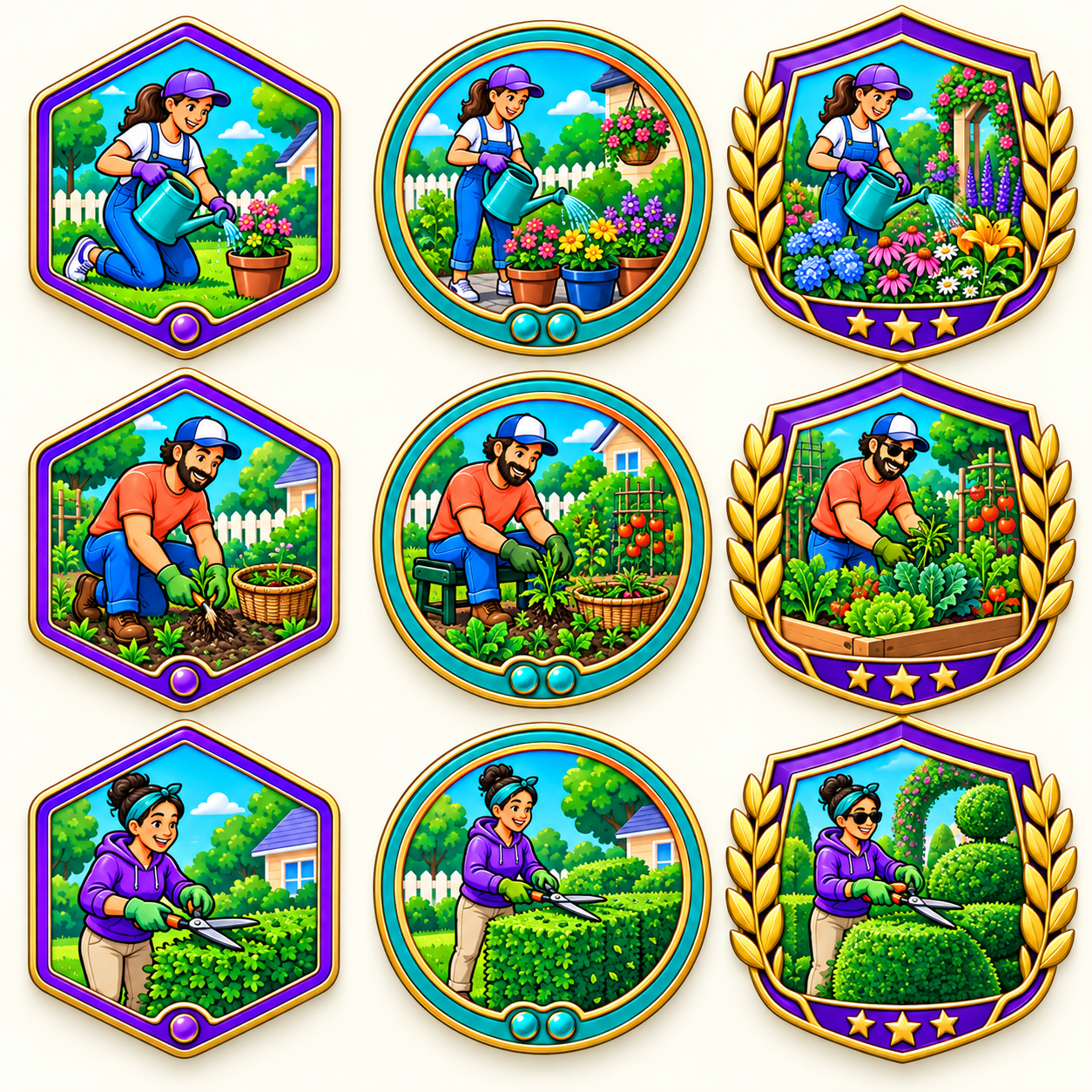
GARDEN · RANK 1
Complete one Water plants chore from the Chores library. No minimum working time is required for this first rank.
Choose All badges to browse the collection or Earned to see your awards. Archiving keeps your history and badge credit. Deleting a completed chore removes that occurrence’s credit.
Open Settings and scroll to the Reminders section. Turn on Chore reminders, choose Before scheduled time to set the lead time, and pick an alert sound. Allow notifications when Apple asks.
Open a chore’s details to check its reminder status. Pipward shows the scheduled alert time or explains when reminders are off or notification permission needs attention. If a new timed chore’s advance reminder time has already passed, its reminder falls back to the chore’s start time. Times already past do not send a catch-up alert.
Morning, Afternoon and Evening occurrences each use their own reminder. If Settings reports a scheduling problem, tap Retry reminders.
Use Send a test reminder to try an alert in a minute. If reminders are quiet, check notification permissions, Sounds, Silent Mode and Focus.
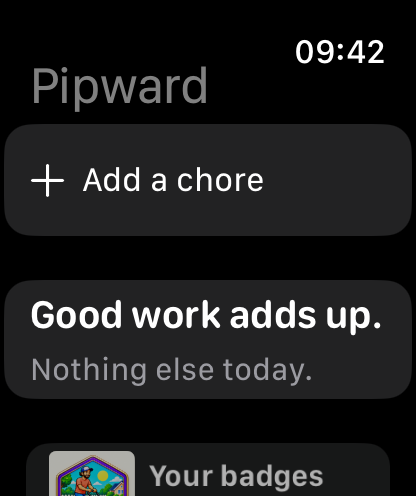
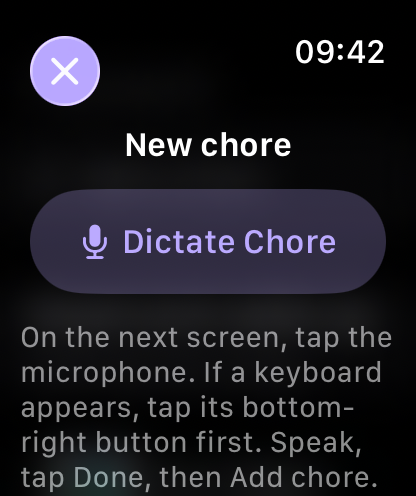
On Apple Watch, tap Add a chore → Dictate Chore. Use Apple’s microphone option if the input screen opens in typing mode. Review the words, finish input, then tap Add chore.
Open a chore on your watch to review it or check off checklist items. Set up separate Morning, Afternoon and Evening times on iPhone or iPad, then view and complete each occurrence on your watch. Keep Pipward updated on your participating devices and allow time for changes to sync.
To choose a palette for your watch, open Appearance in Pipward on Apple Watch. This choice is saved on the watch, separately from your iPhone or iPad.
A Pipward complication can put the next chore or your pending count on a compatible watch face. The exact display depends on the face and complication position.
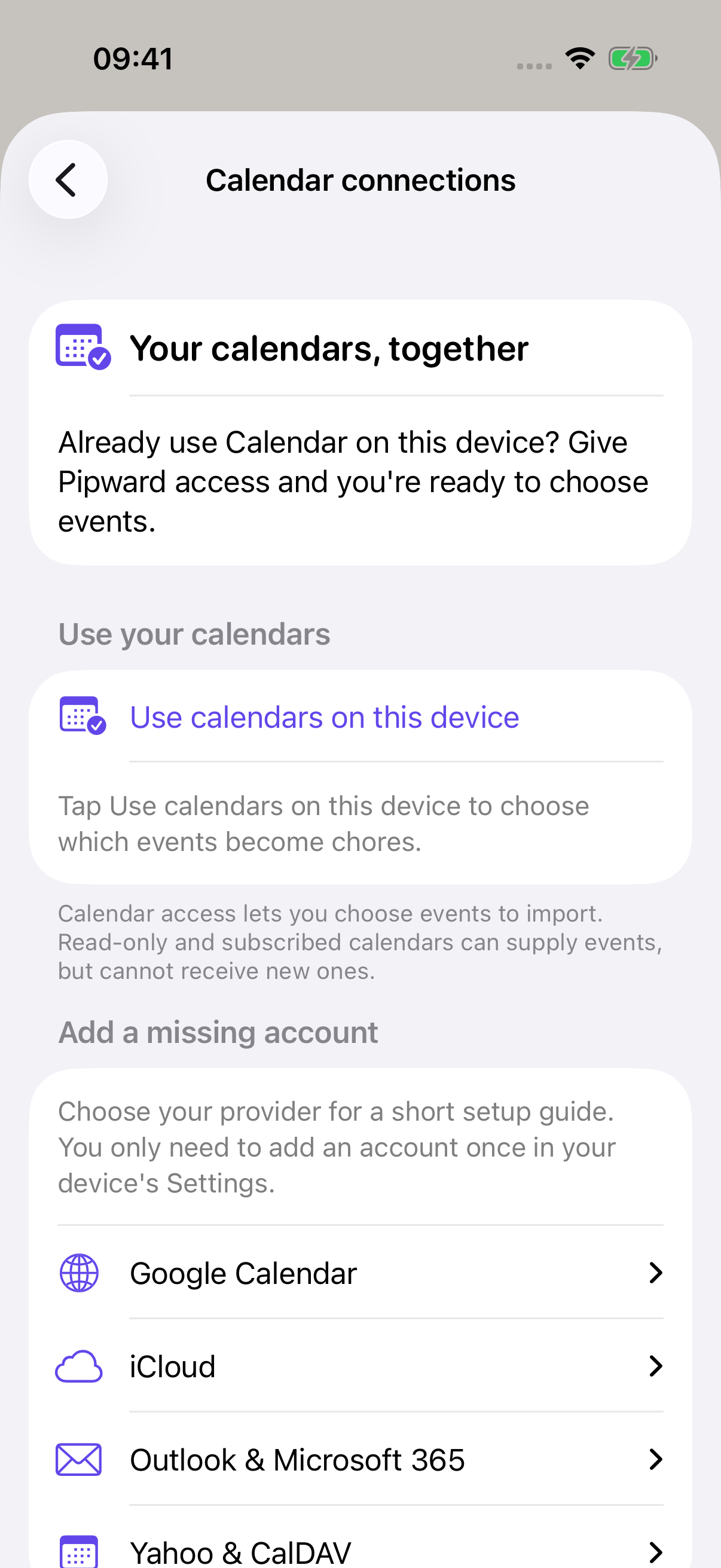
Open Settings → Calendar connections on iPhone or iPad. Choose calendars already on the device, or use the provider guides to add an account in Apple Settings.
From Today, choose Bring in a calendar event and select the event you want to turn into a chore. Calendar access is optional.
Importing an event makes a chore; it doesn’t set up automatic two-way calendar sync. To send changes back later, use Update calendar event and review them before saving.
Your open chores are ordered by their scheduled date, with earlier dates first. Within each day, timed chores run from earliest to latest—so Morning, Afternoon and Evening fall into place using their saved clock times.
In Today, a chore with a date but no clock time is shown as Anytime. It follows that day’s timed chores. Chores without a date stay in Someday.
Upcoming repeat previews and the next-chore display use the same order. Completed chores in Done still show your most recent completions first.
Set a useful time: open a chore, tap Edit and use Set a time in the When section. Changing a clock time changes where that chore appears in the day’s list.
Choose from Pipward, Ocean, Forest, Teal, Sunset, Rose, Berry, Lavender, Clay and Slate. Each palette includes light and dark colors for the app’s highlights, buttons, cards and backgrounds. Badge artwork keeps its original colors.
Your theme and appearance choices are saved on the device you’re using. They do not change another device’s settings. On Apple Watch, open Appearance in Pipward to choose the watch’s own palette.
Follow device follows Light and Dark Mode. Choose Pipward’s color palette here in the app; it is separate from your Home Screen icon color.
STILL NEED A HAND?
support@pipward.onlineTell us your device and where you got stuck. We’ll help you find the next step.